Reading a risk report
Last updated 16 July 2026
Reading a risk report
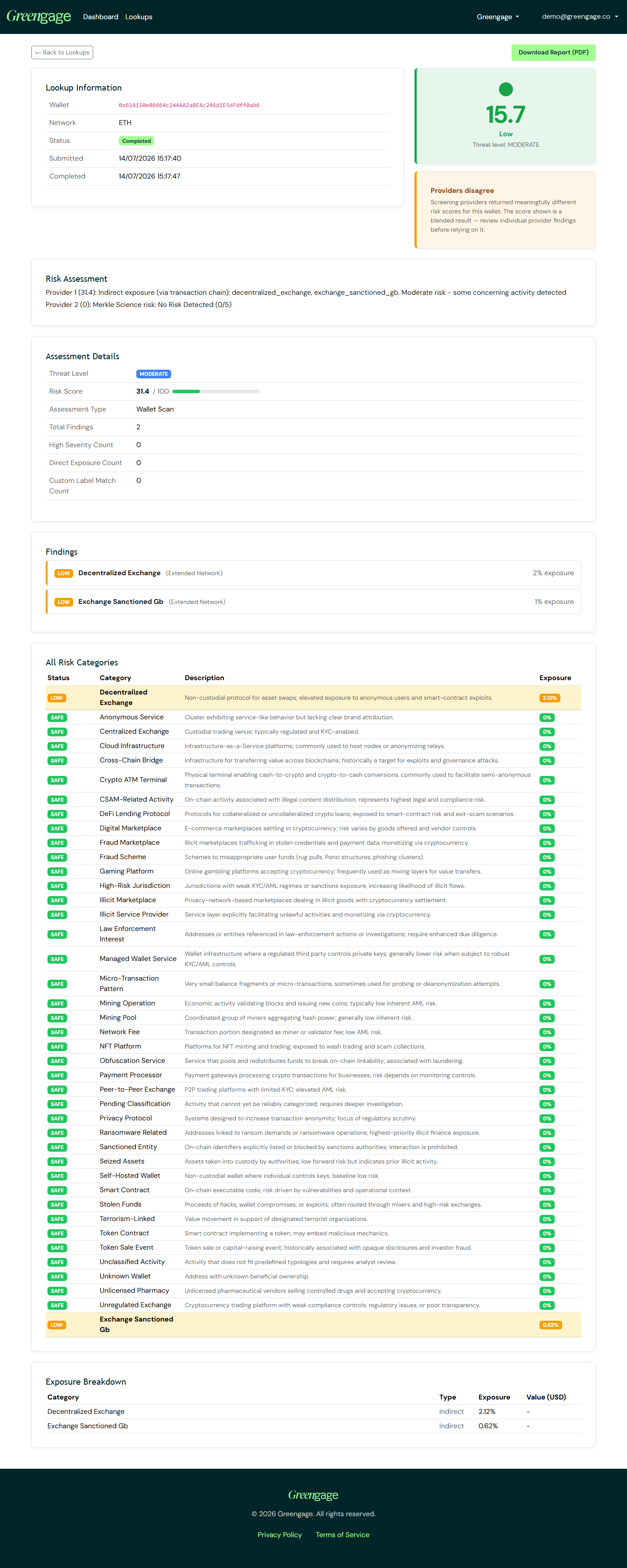
Once a lookup completes, its detail page lays out a full risk report in sections. A report that's still processing refreshes itself every few seconds until it's complete, so you don't need to reload the page.
Risk score and band
The headline number is the risk score, from 0 to 100, shown alongside the label of the risk band it falls into — the colour and label come from your workspace's own configured bands. See Configuring risk bands.
Threat level
Alongside the score, a Threat Level gives a quick read of severity, such as moderate, elevated, or critical.
When providers disagree
Some lookups are screened by more than one provider. When the providers disagree by a meaningful margin, you'll see a Providers disagree warning: the score shown is a blended result, so review the individual provider findings below before relying on it alone.
Per-provider lines
The Risk Assessment panel lists a short summary line from each screening provider that ran, so you can compare their individual views.
Assessment Details
A table of the threat level, the risk score itself, the assessment type, and any other summary fields the assessment produced.
Findings
Each finding is a specific issue the assessment flagged, with a severity badge, a category, and (where relevant) a connection type and an exposure share.
All Risk Categories
A complete table of every risk category Greengage screens for. Each row is marked SAFE or FOUND, with an exposure percentage showing how much of the wallet's activity touches that category — categories that weren't found still appear, at 0% exposure, so you can see the full picture rather than just the hits.
Source Analysis
Where the underlying funds came from: an indirect risk score, how many sources were scanned and flagged, and a table of each source address with its hop distance, transaction count, value received, and threat level.
Exposure Breakdown
A table splitting exposure into direct and indirect categories, each with its own share and value in USD, for a more granular view than the Source Analysis table alone.
Address Info
Background details about the address itself, such as when it was first seen and how it's been used.
Detailed Report
An AI-written narrative report that pulls the whole assessment together in plain English, for when you want the full story rather than just the tables.
Ready to share the result? See Downloading a PDF report.