Two-factor authentication
Last updated 16 July 2026
Two-factor authentication
Two-factor authentication (2FA) adds a second step to signing in: after your password, you also enter a 6-digit code from an authenticator app. It's one of the quickest ways to protect your account.
Setting up two-factor authentication
Open My Profile and select Manage Two-Factor Authentication to get started.
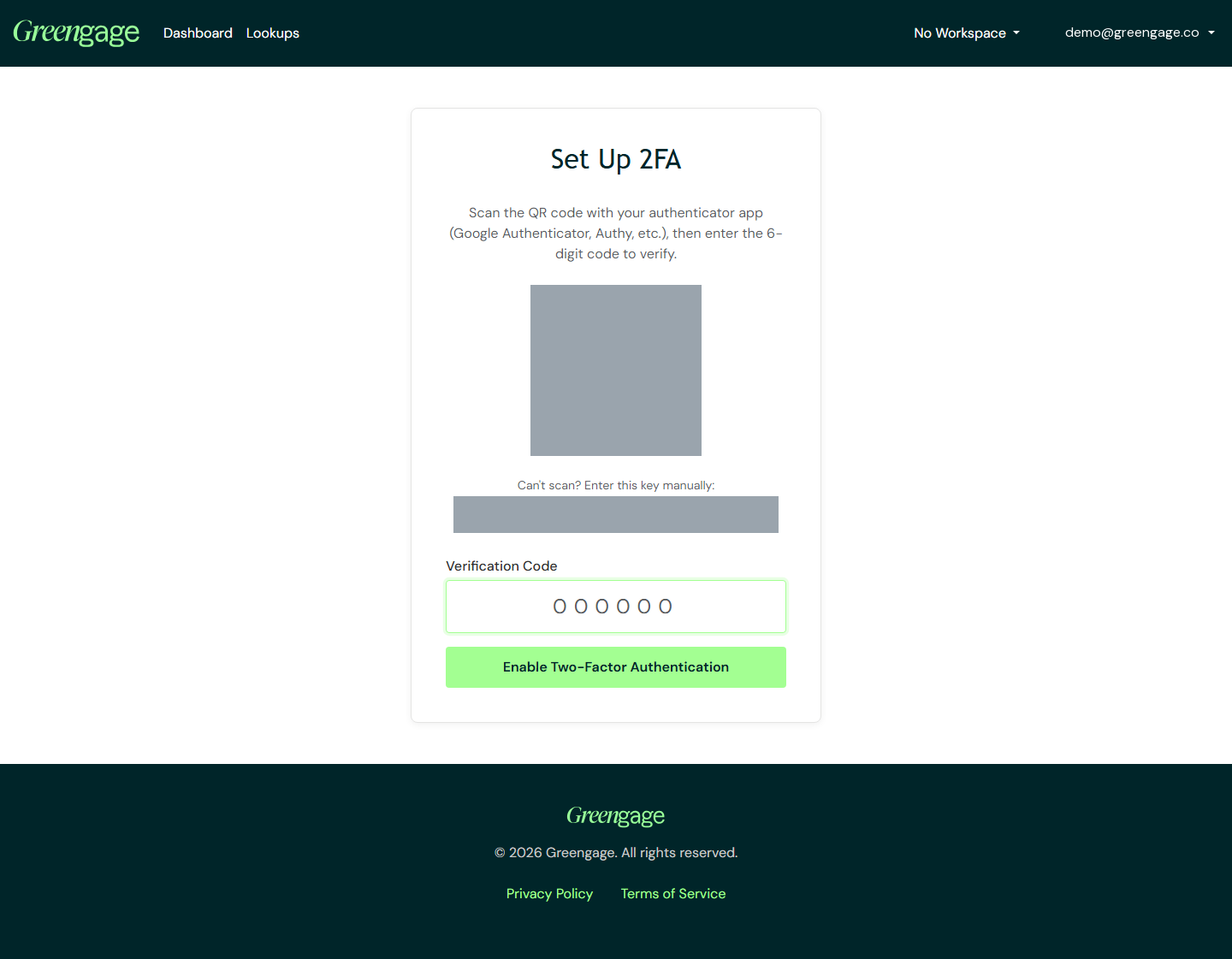
- Scan the QR code with an authenticator app — such as Google Authenticator or Authy — or, if you can't scan it, copy the key shown underneath and enter it into your authenticator app manually.
- Enter the 6-digit Verification Code your authenticator app is now showing, then select Enable Two-Factor Authentication.
Save your recovery codes
As soon as two-factor authentication is enabled, you're shown a set of recovery codes. Save these somewhere safe before you continue — see Recovery codes.
Signing in with two-factor authentication
Once it's enabled, signing in with the right password takes you to a second screen asking for a 6-digit code from your authenticator app before you're let in.